
Documents and statements
View and download all your documents online, including void cheques and tax slips.
Register for online documents and statements
Register to access your documents and statements at any time using our mobile and online services. You can also save them to your computer and print them if necessary.
Convenient
Easily manage your finances by accessing your documents in 1 place.
Secure
View and download your documents and statements for free in a secure environment.
Environmentally friendly
Save paper by reading your statements and documents online.
How to register for online documents and statements
Register for online documents, statements and tax slips
To access your documents, statements and tax slips securely online, you must first register for this feature using our mobile and online services.
In the app
- Log in to the Desjardins mobile services app.
- Select More in the lower right corner, then Statements and documents.
- Under Sign up for online statements and documents, select Sign up.
- Check the box that says I have read and I accept the consent and terms of use.
- Select Confirm.
In a browser
- Log in to AccèsD.
- Select Statements and documents.
- Under Register for online statements and documents, select Accounts, investments and tax information slips.
- Select Register.
- Check the box that says I have read the Consent and Terms of Use.
- Select Confirm.
Your first statement will be available the following month.
Register for Capital régional et coopératif Desjardins (CRCD) documents, statements and tax slips
- Log in to AccèsD.
- Select Statements and documents.
- Under Investment statements and documents, select Capital régional et coopératif Desjardins.
- Under How do you want to receive your documents?, select Edit.
- Select Online documents under Tax slips and Investment and confirmation statements.
- Select Save.
Once you’re registered for online statements, you’ll no longer receive documents, statements or tax slips by mail. You’ll get a message in your secure message box when a new investment document or tax slip is available. You won’t receive notifications for account statements.
Get a void cheque
Need a void cheque for payroll direct deposits or pre-authorized payments? You can provide a regular cheque with “VOID” written on it or download one on AccèsD. See how to get a void cheque online.
How to read a void cheque
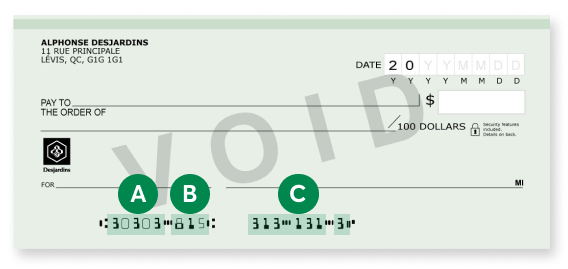

5-digit transit number, or caisse or branch identification number

3-digit caisse institution number

7-digit account number
Your account statement
Your online account statement is available the first day of the month and is retrievable for 7 years.
How to view your statement online
- Mobile app
- Web browser
Mobile app
Open the Desjardins mobile services app
Log in to the app.
Make your selection
In the Accounts section, select See all, then select your everyday account.
View your statement
Select Statements, then choose the month you want to view.
Web browser
Open a web browser
Log in to AccèsD.
Make your selection
Under Accounts, select your everyday account.
View your Statement
Select Statements, then choose the month you want to view.
Understanding your account statement
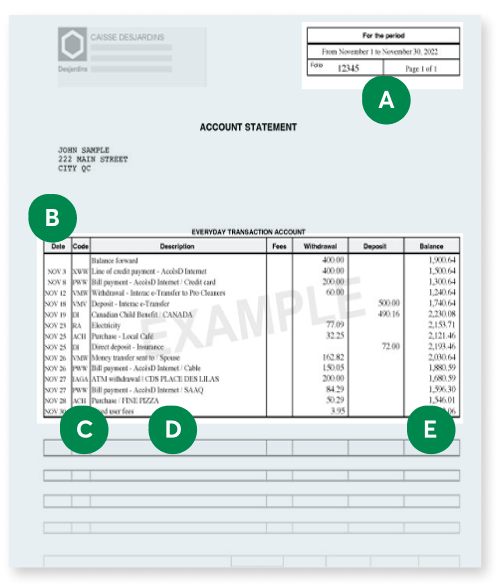

Folio number and time period

Transaction date

3-letter transaction code (see the list of transaction codes and what they mean)

Transaction description (such as payment, withdrawal, deposit, transfer, cheque)

Balance after transaction
Your investment documents and statements
Your investment documents and statements are issued at different times. The amount of time they’re available to view online depends on the document.
How to view your statement online
- Mobile app
- Web browser
Mobile app
Open the Desjardins mobile services app
Log in to the app. Select More at the bottom right, then Statements and documents.
Make your selection
Under Statements and documents, select Investment documents. Some documents aren’t yet available in the app. If you signed up for online statements and documents, you can use a web browser to consult them on AccèsD.
View your statement
Choose your investment and select your document.
Web browser
Open your browser
Log in to AccèsD on your computer, then select Statements and documents.
Make your selection
Under Investment statements and documents, select Capital régional et coopératif Desjardins.
View your document
Choose your investment and select your document.
How long documents stay on AccèsD
Market-linked guaranteed investments
| Document | Time available to view |
|---|---|
| Fees and losses notice | 7 years |
| Other notices | 3 months |
| Investment agreement | Duration of the term of the product |
Term savings investments
| Document | Time available to view |
|---|---|
| Notice of renewal | Until a new notice of renewal is issued or the account is closed |
| Guaranteed investment certificate | Duration of the term of the product |
| Registered plan enrollment agreement | Duration of the term of the product |
| Online Term S@vings notice (offered online only) | 90 days |
Desjardins Funds
Desjardins Funds investment statements are issued 4 times a year, in April, July, October and January.
| Document | Time available to view |
|---|---|
| Fund Facts | 1 year |
| Transaction notices | 4 months |
| Desjardins Funds financial statements | 1 year |
| Desjardins Funds management reports | 1 year |
| Investment statements, investment performance reports and reports on fees and other compensation | 1 year |
Capital régional et coopératif Desjardins
Capital régional et coopératif Desjardins investment statements are issued twice a year. They're generally available in mid-March and mid-September.
| Document | Time available to view |
|---|---|
| Investment statements | Up to 7 years after the account is closed |
| Confirmation statements | Up to 7 years after the account is closed |
Tax slips and statements
Your investment documents include provincial and federal information slips you’ll need for your income tax return, such as the RL-3 and the T5.
Receiving your tax statements and slips
Your tax documents are issued and sent out every year between January and April, depending on which accounts and investments you have.
Mailing dates for registered accounts
| Statement, slip or document | Description | Sent by |
|---|---|---|
| RRSP contribution receipt | Contributions made between March 1 and December 31, 2025 | Mid-January, 2026 |
| RRSP contribution receipt | Contributions made between January 1 and March 2, 2026 | Every week starting the third week of January 2026 |
| NR4 | RRSP or RRIF withdrawals made by non-residents | March 31, 2026 |
| T4RSP / RL-2 | RRSP or LIRA withdrawals | March 2, 2026 |
| T4RIF / RL-2 | RRIF or LIF withdrawals | March 2, 2026 |
| T4A / RL-1 | RESP withdrawals | March 2, 2026 |
| T4FHSA/ RL-32 | FHSA contribution | March 2, 2026 |
Mailing dates for non-registered accounts
| Statement, slip or document | Description | Sent by |
|---|---|---|
| T5 / RL-3 | Dividend or interest income totalling $50 or more | March 2, 2026 |
| T5008 / RL-18 | Securities transactions statement | March 2, 2026 |
| T3 (mutual investment fund) / RL-16 | Income distributions and returns of capital for mutual funds | March 31, 2026 |
| NR4 | Distribution of investment income to non-residents totalling $50 or more | March 31, 2026 |
Useful information
You should receive your documents within 5 to 10 business days from the mailing date.
Download your tax documents online
Get your documents days or weeks faster by registering for online documents and statements. You can get tax slips for:
- Your Market-Linked Guaranteed Investments
- Your term savings investments
- Your Desjardins Funds portfolio and funds
- Your Capital régional et coopératif Desjardins shares
You can view your tax slips online for 7 years after they’re issued. You’ll no longer receive a paper copy. See how to get your tax slips.
If you have investments with one or more individuals, you’ll only be able to access your tax slips online if you’re the main investment holder.
FAQ
How do I print my online account statement?
To print your account statement, you must log in to AccèsD on a web browser. This feature isn't available in the mobile app.
- Log in to AccèsD.
- Go to the Accounts section.
- Select your everyday account.
- On the following page, select the Statements tab.
- Choose the statement you want to print.
- Download the statement.
- Print your statement.