
How to log in using 2-step verification
Learn how to use 2-step verification to log in to our mobile and online services.
Instructions
- Mobile app
- Web browser
Mobile app
Log in to the Desjardins mobile services app.
The 2-step verification page appears. Under Recommended methods for verifying your identity, select the Notification or Text
1 button, then select the Continue button. You could also look at alternative methods for verifying your identity.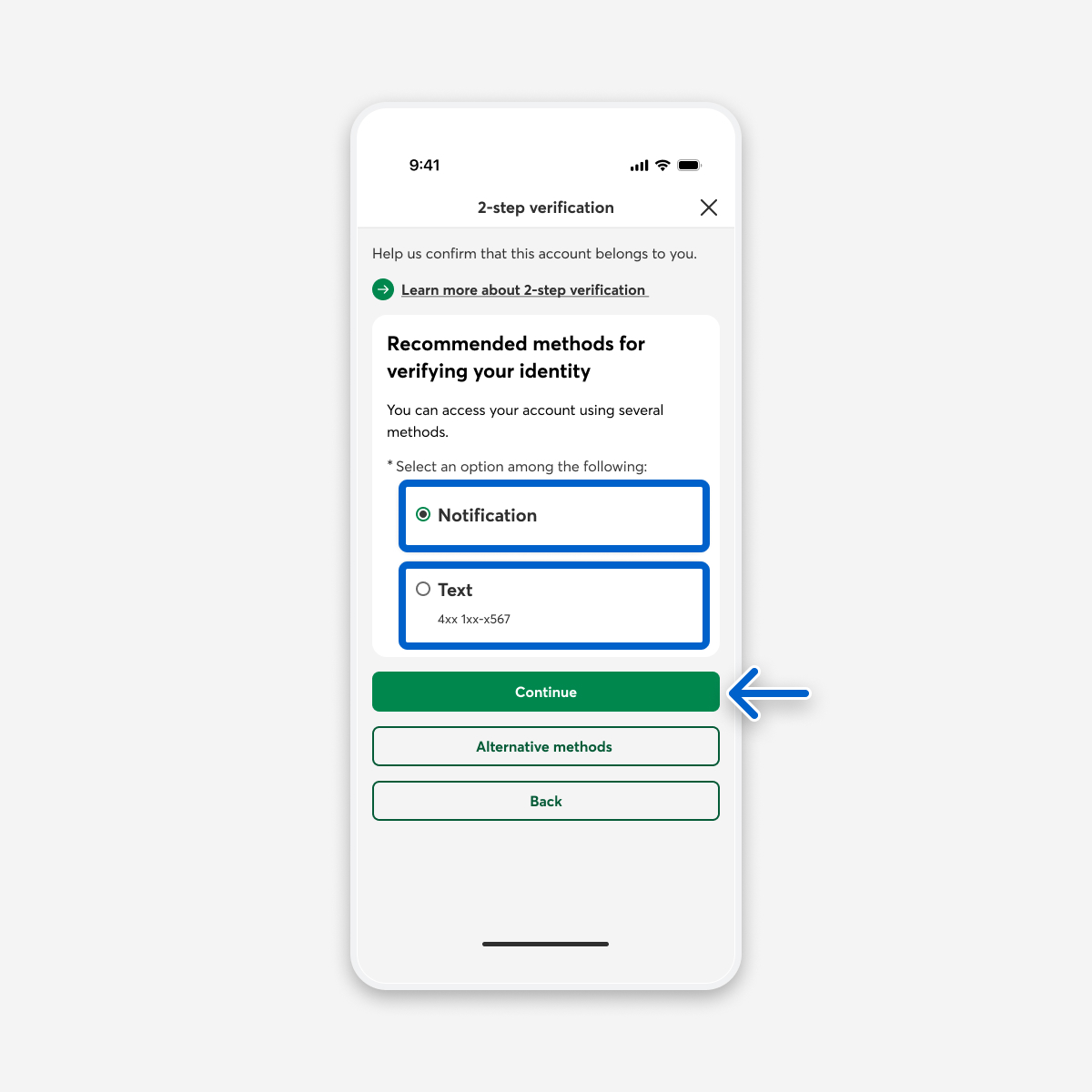
Check your device for the code.
On the 2-step verification page, under Security code, enter the code you received. The code expires after 10 minutes. If you don’t enter it in time, you can request a new one.
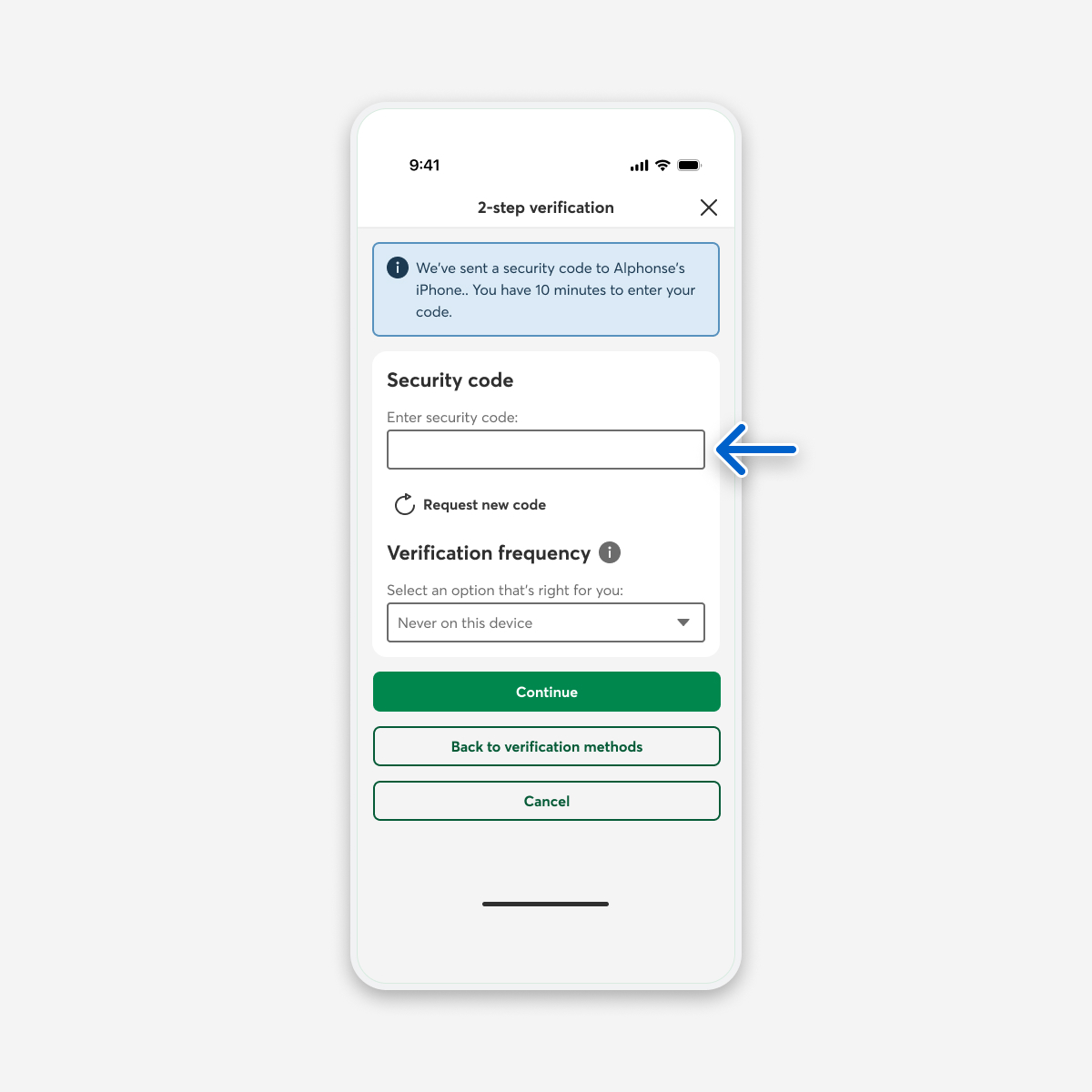
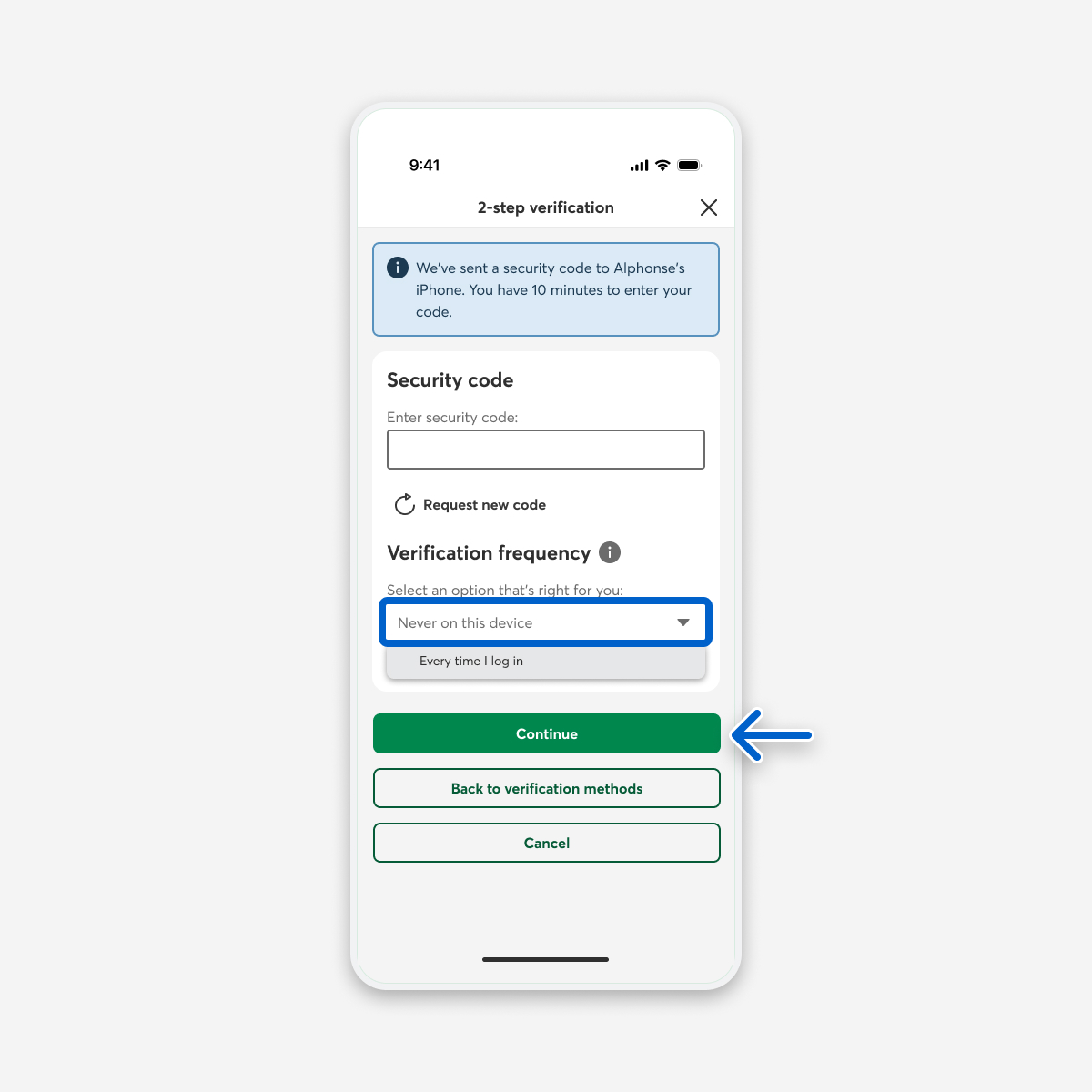
Under Verification frequency, select Never on this device or Every time I log in from the menu, then select the Continue button.
Web browser
Log in to AccèsD.
The 2-step verification page appears. Under Recommended methods for verifying your identity, select the Notification or Text
1 button, then select the Continue button. You could also look at alternative methods for verifying your identity.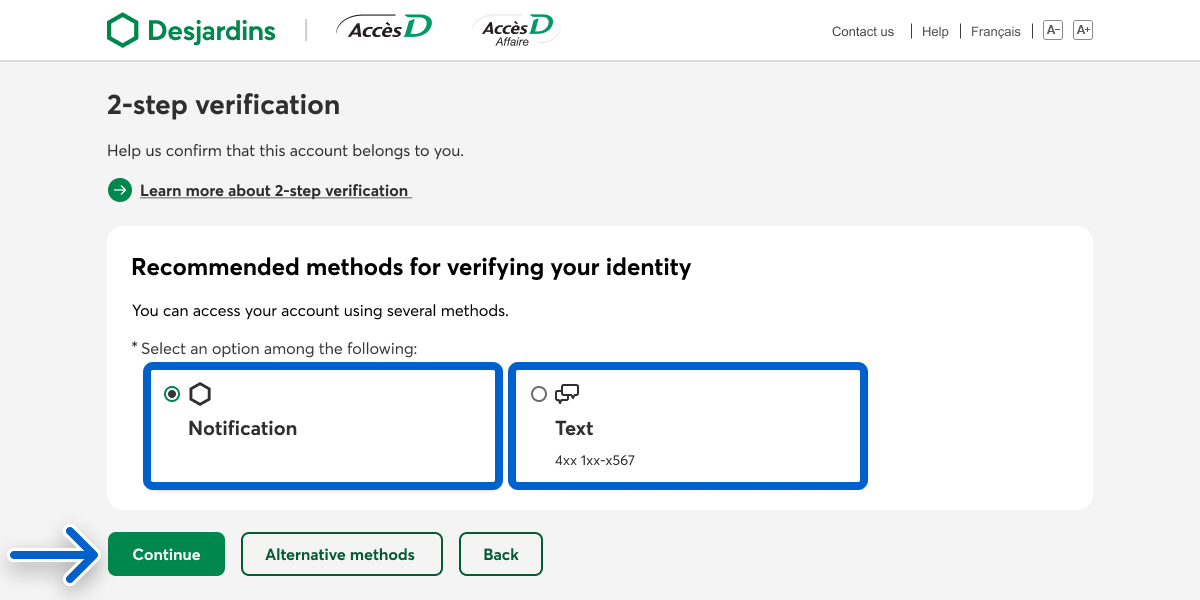
Check your device for the code.
On the 2-step verification page, under Security code, enter the code you received. The code expires after 10 minutes. If you don’t enter it in time, you can request a new one.
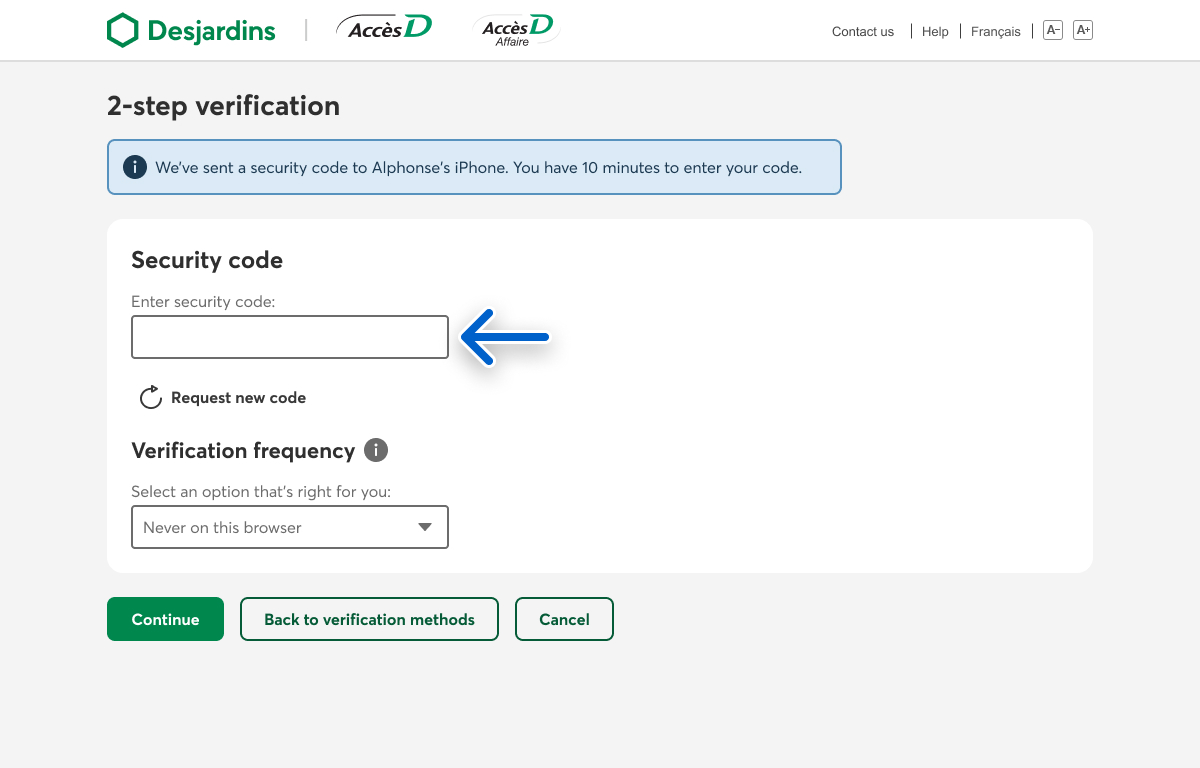
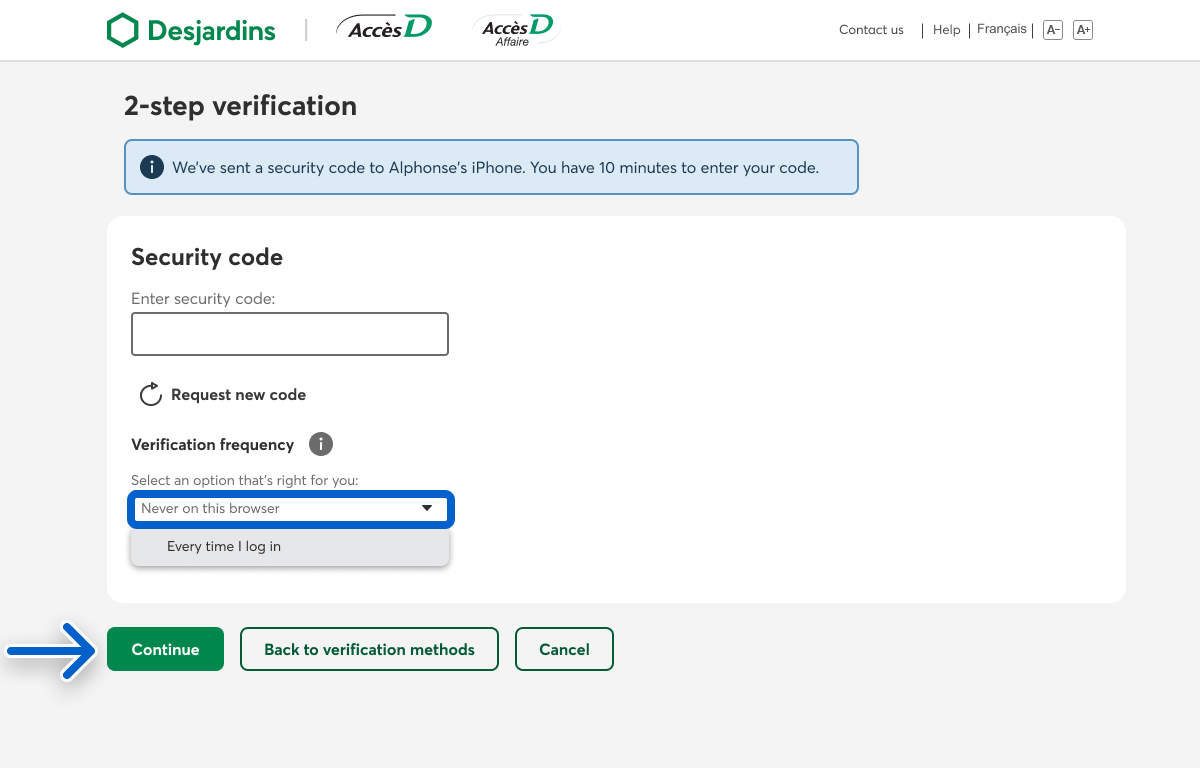
Under Verification frequency, select Never on this browser or Every time I log in from the menu, then select the Continue button.
Note
If you try to log in to AccèsD using a different browser or computer, you’ll have to verify your identity again. You might want to change the verification frequency for that browser or computer as well.
Call us
1-800-224-7737 This link opens your phone app. (1-800-CAISSES)
Or we can call you when it's convenient.